Accounts Receivable - Statement Printing
Overview
Statements may be printed on a form, blank paper or with Trackers' Form-on-the-Fly option. The Form-on-the-Fly option requires a Laser printer to be used.
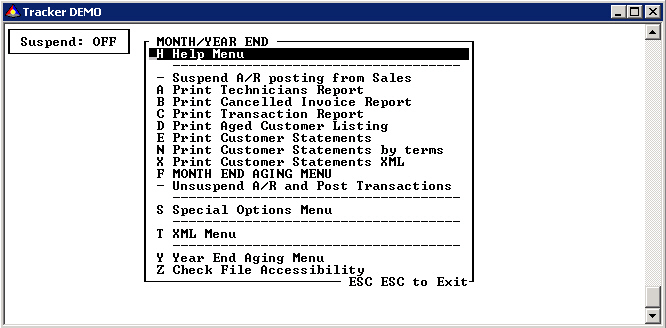
The Month-End Menu
Print Statements using a pre-printed form or as text only on blank paper.
Select option E Print Customer Statements
Alternatively you can also use option N if you want to print statements based on the customers' terms.
Print Statements using Form-on-the-Fly
Using this method to print your statements requires that the destination printer is set as default printer on a networked PC or on the Tracker Server itself. Form-on-the-Fly printing is sometimes referred to printing with XML. Tracker Print Server is required to print using XML. See: Special Features, Print Spooler.
Select option X Print Customer Statements XML
When printing with XML the customer copies will be printed first. Option T XML Menu is used to queue up the office copy for printing and to Clear the Statement Folder, readying it for the next statement run.
The office copy and clearing of statement folder can be done later. The print copies are saved until the tasks on the XML menu are processed.
After the customer copies have been printed select T XML Menu from the Month-End Menu.
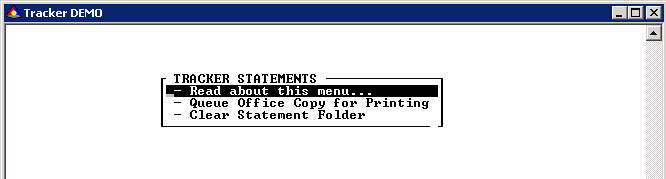
Select Queue Office Copy for Printing to print your office copy.
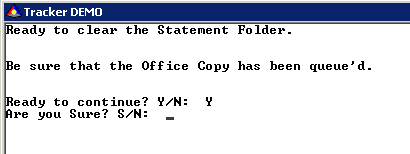
After the office copy print run has completed select Clear Statement Folder. This selection archives the current statement run and readies the system for the next statement run.
Because these task are rather final and extra prompt has been added to the confirmation request. Please note that the first affirmative reply is a Y and the second is S to confirm that you are sure.
Copyright © 2005 Byte Designs Ltd. All Rights Reserved.