The ability to have automatic superseding part number call-up is an option that must be `turned on' during the Personalizing the System process.
A `Supersede' is a part number that is NOT in the inventory file. It can be a part number that has been replaced by a newer part number, an interchange from another manufacturer, or?
Any part number in your inventory can have an unlimited number of `Supersede Numbers'.
Supersedes take relatively little room on your hard disk as compared to a complete inventory record.
To set up a `Supersede' call up a part number as you normally would. - The cursor will be positioned at the Edit prompt.
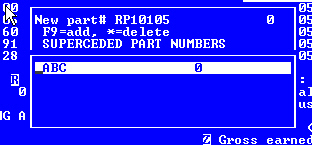
F7
Press the F7 key and the Supersede window will be displayed.
Any supersedes already set up for the part would appear in the `supersede window'.
Add a Supersede
F9
Press the F9 key to add a `Supersede'.
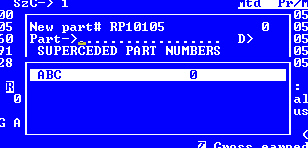
Type in any number you want to use to `get to' the current part number.
Any given number can only be used once, but up to 99 duplicates are allowed. A supersede number is made up of the number you enter and a `behind the scenes' number ranging from 0-99.
The first time you put a number in, the `duplicate' will be 0 and you simply press [ENTER] at the duplicate number prompt. As you add more of the same number you have to make them unique, using the `duplicate' number. Don't worry about having to remember this `duplicate' number, once entered here it is truly `behind the scenes'.
To delete a supersede, in the supersede window highlight the number to be deleted and press * ( asterisk - shift/8 )