
Your Byte Designs Tracker Software System features complete on-line help. At most screens help can be invoked by pressing the help key ( ? ) at the beginning of a prompt line.
In the Character based portion of the Tracker Software System the HELP KEY is the question mark (?). The Graphical based portion makes use of the regular help facility of the Windows environment which is normally a help button or help menu entry.
At the Main Menu or a Sub Menu, when the help key (?) is pressed you will receive information about the task 'highlighted'.
Pressing the help key (?) at the beginning of a prompt will provide you with information that will include an explanation of expected input and a list of commands available at the particular prompt.
Sample Help Screen
When help is invoked you will be in a help window. To return to the prompt where help was invoked press ENTER at any line that is not preceded with an '*' (asterisk) or press ESC ESC.
A line that is preceded by an '*' (asterisk) is a help/command line. By using the UP/DOWN arrows to highlight a command line the command can be issued by pressing ENTER.
Any function key command shown as a command line can be issued directly by pressing the associated function key, without highlighting the command first.
Additional help is usually available by pressing the ? again.
Extended Help Screen Sample
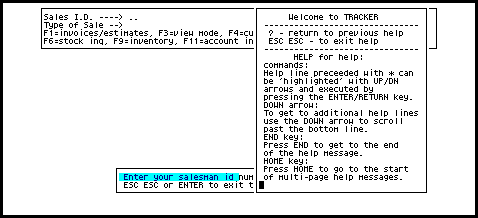
In some cases, for the sake of leaving as much of the normal screen available for viewing while help is invoked, the help screen does not accommodate all commands available in one viewing.
Invoicing/Work-Orders Help Screen
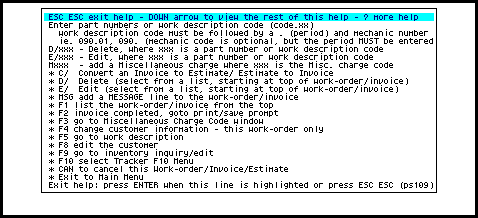
If there is additional help use the DOWN arrow to display another 'window full' or press the END key to go to the end of the help window.
To invoke HELP at a prompt you must press the HELP KEY (?) at the FIRST DOT of the prompt.
If you have gone past the first character position use the back or left arrow to position the cursor at the first position.
While we are endeavoring to have complete help available at each and every prompt in your Byte Designs Software System, achieving same is a little bit like road construction - it doesn't all happen overnight.
When the help key is pressed and help is not yet available at that particular prompt the following message appears in the lower left corner of your screen:
Could not find help code xxxxx,nnn (where xxxxx is a program name and nnn is a number)
The cursor will be positioned at the number - PRESS ENTER to return to the prompt where the help key was pressed.
You will have just found a section of 'road under construction'. We apologize for any inconvenience and trust the next software update you receive will have that section of the road in place.
Visit the Byte Designs Tracker Website
Copyright © 2005 Byte Designs Ltd. All Rights Reserved.